Commond file Systems
- windows: FAT32 and NTFS
- Mac: HFS+ and APFS
- Linux: ext2, ext3, ext4,xfs, and ftrfs
in this article we will use the ext4, because it is the default for ubuntu
Command that use to search for command
# seach for command that related to
apropos file
article "remove file"

whatis rm
Files
- collection of binary data that represents information.
- Text-contents interpreted as characters
- Binary-contents interpreted by software or hardware
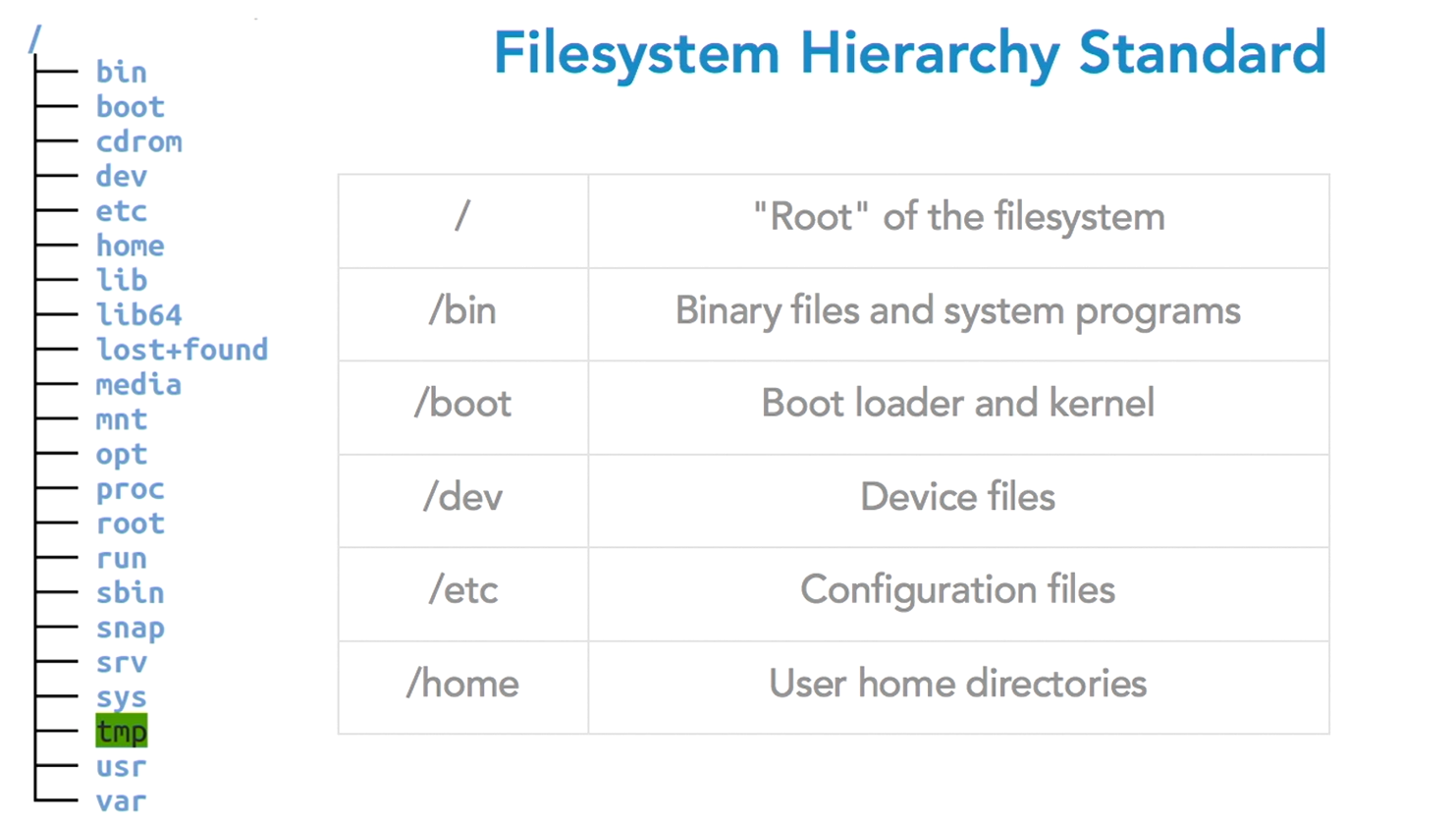
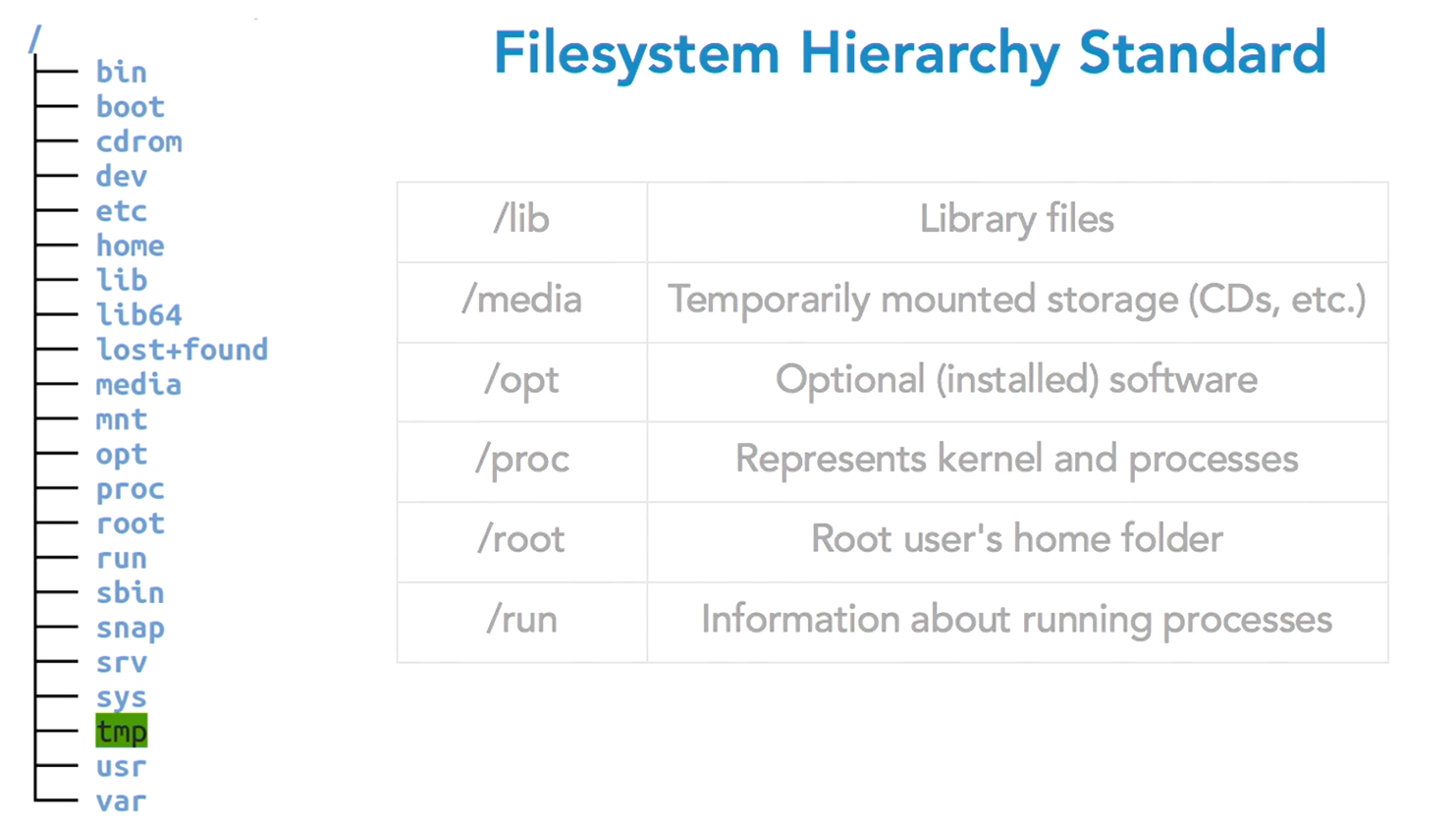
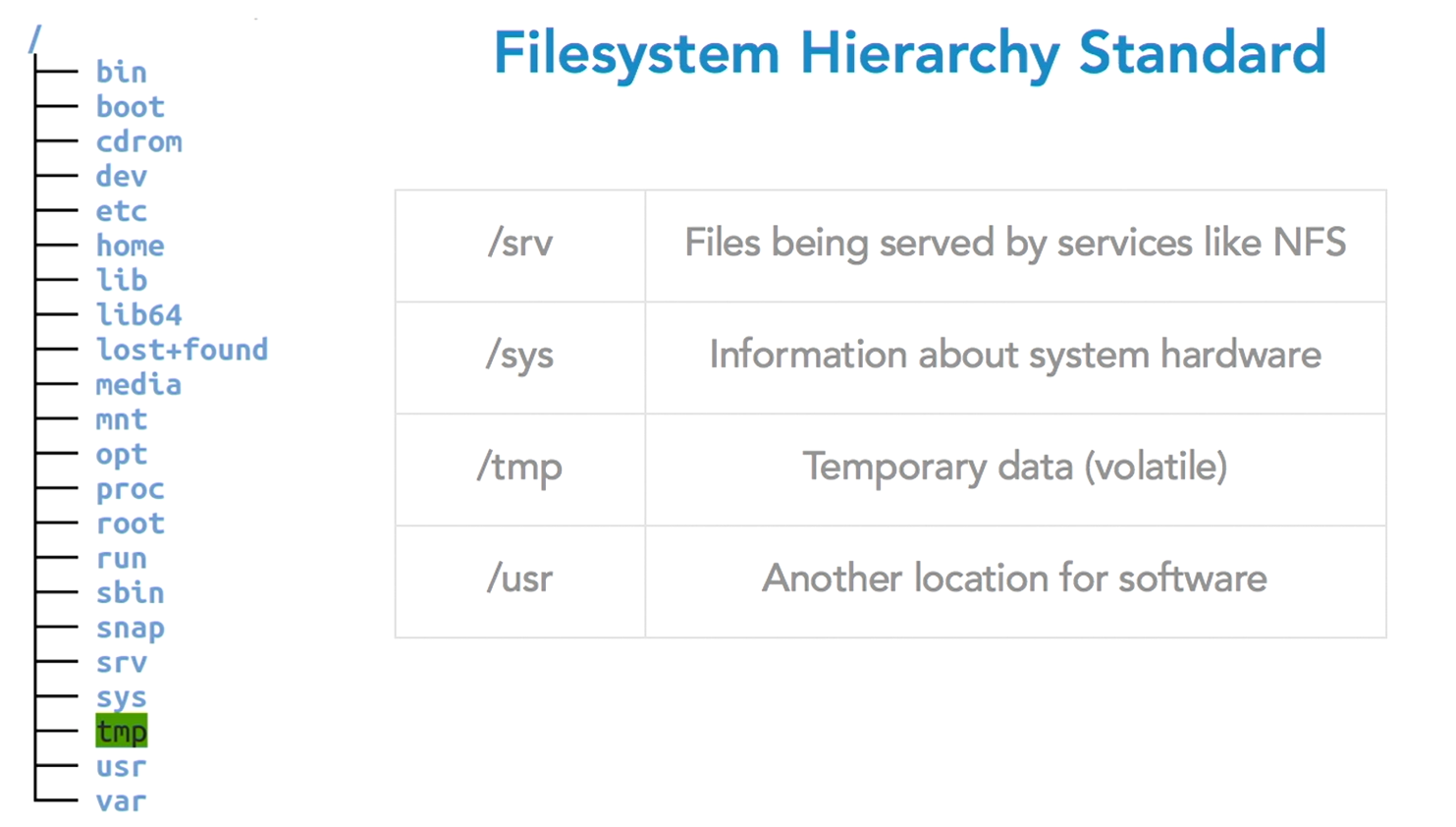
you can easily find the command location by using which <command-name>
Shortcut characters
| Character | Meaning | |— |— | | . | current dirrectory | | .. | Parent directory | | ~ | user’s home folder |
Working with files and directories
File Globbing
Using patterns to match file or directory names
-
- match zero or more of any charater
- ? matches one of any character
man 7 glob

# how to use globbing command
ls a*
Hard links and soft (symbolic) Links
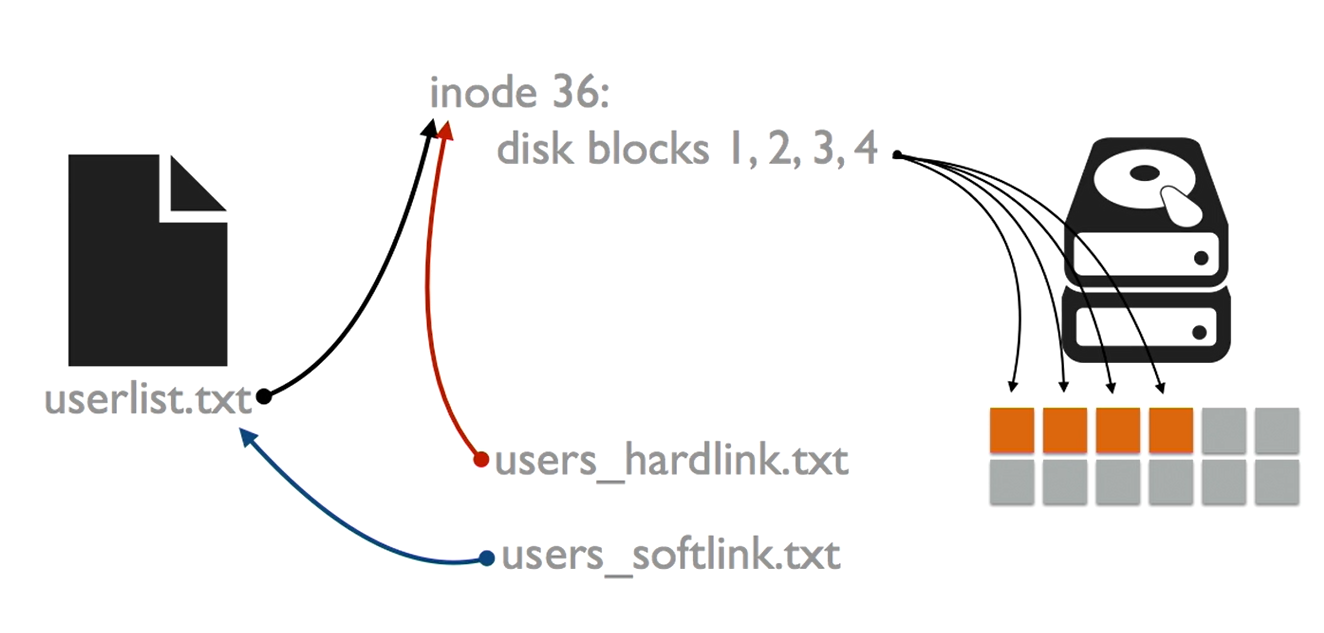
nano users.txt
ln -s /home/yushin/users.txt /home/yushin/user-list.txt
Finding file
touch apple pineapple eggplaint

truncate file1 1M
truncate file2 10M
truncate file3 100M

# find the file

find . -name apple
find . -name "*apple*"

file . -size -10M
file . -size +10M

file . -name apple -type d
file . -name apple -type f
Input/output redirection
echo "I love my wife" > out.txt

echo "my wife is so beautifull" >>  out.txt

ls > homedir.txt

# take the content of the file and pass it into next command
cat homedir.txt | wc

# take the content in the reverse direction

wc < homedir.txt

wc << EOF
> this is a line of text
> and some numbers: 123
> but that's all for now
| Descriptor | Number |
|---|---|
| Standard Input(stdin) | 0 |
| Standard Output(stdout) | 1 |
| Standard Error(stderr) | 2 |
# find the file and folder that have name "home" and write the error to error.txt and the results to output.txt
 find / -name "home" 2>error.txt 1>output.txt
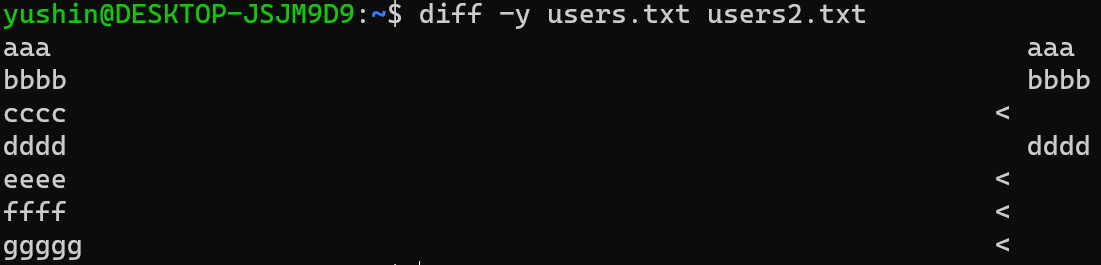
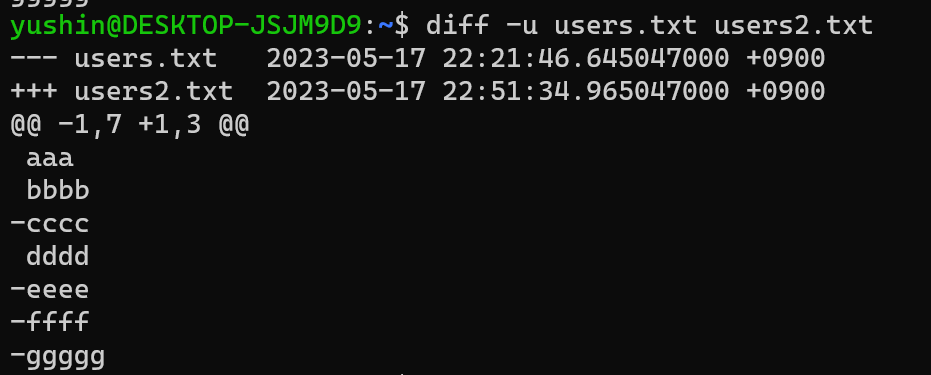
Compare txt Files
diff -y users.txt users2.txt
diff -u users.txt users2.txt
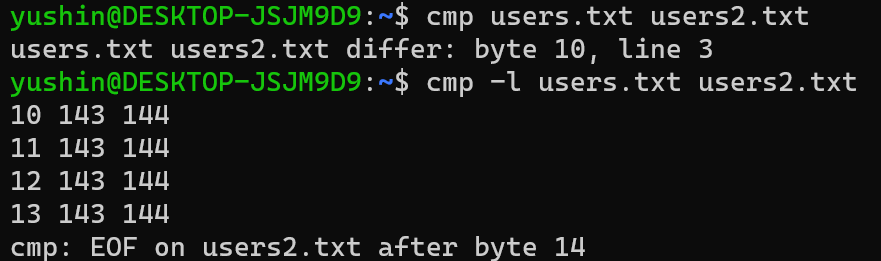
Comparing Binary Files
 cmp users.txt users2.txt

 cmp -l users.txt users2.txt

 hexdump users.txt

 stat users.txt
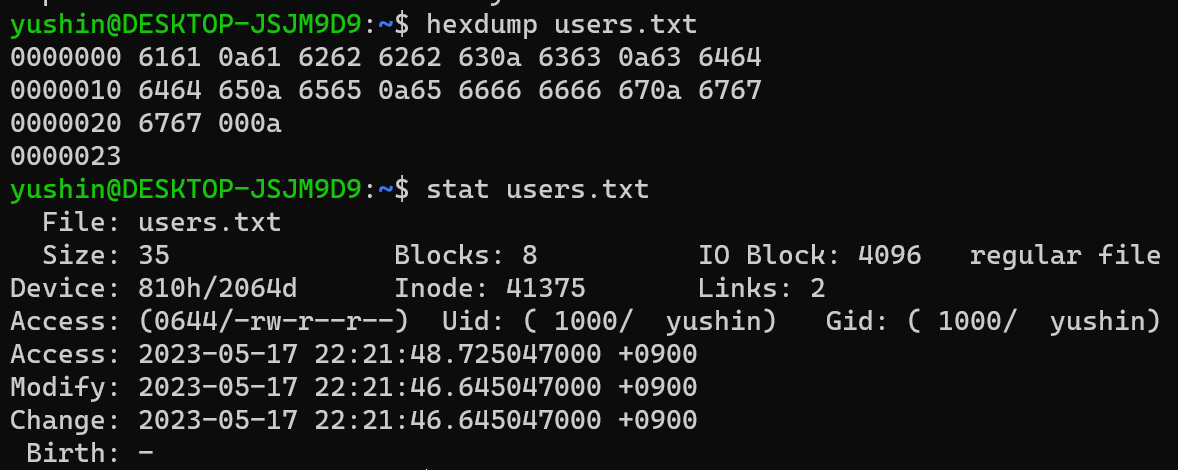
The operating system cannot tell you the qualitative differences.
To compare the contents of files, you my need to use the other software.
Archives and Compression

the common archive format in linux was Tape Archive
tar -cf _archive.tar <folder-name>

# list all file and folder inside the archive file
tar -tf _archive.tar

# extract the file
tar -xf _archive.tar

tar -xf _archive.tar -C <folder-extract-to>
Archive compression

# Gzip
tar -czf _archive.tgz <folder-name>


# Bzip
tar -cjf _archive.tar.tbz <folder-name>
Another way to archive the file in linux by using the zip and unzip command
Regular Expressions(Regex)
- A way of describing text by way of patterns
- Good for matching phone numbers, emails, etc.
- Check out the Learning Regular Expressions course for more detail.
Common Regex Operators
| Operator | Matches |
|---|---|
| . | Any character |
| * | One or more of a specified character |
| [] | Range of characters |
| {} | Number of characters |
| ^ | Beginning of line |
| $ | End of line |
| \n | Newline |
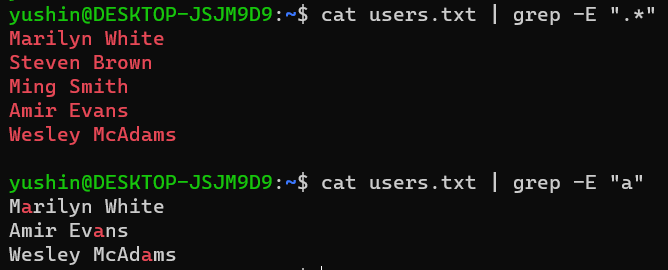
# search all charactor
cat users.txt | grep -E ".*"

# file letter a*
cat users.txt | grep -E "a"
Change files programmatically
sed
- Stream editor
- Good for replacing text according to a rule
- Helpful in piped commands
- s command substitutes text
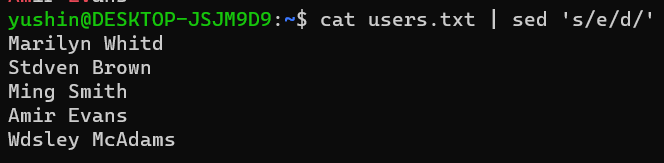
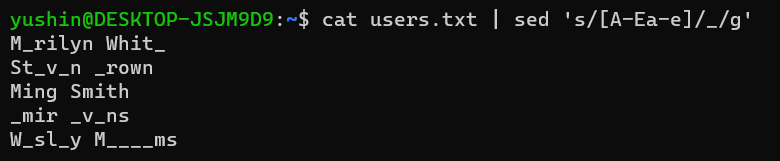
It’s currently doesn’t change the content of the file, if you want it changes, you can overwrite the content of the file latter using
>.
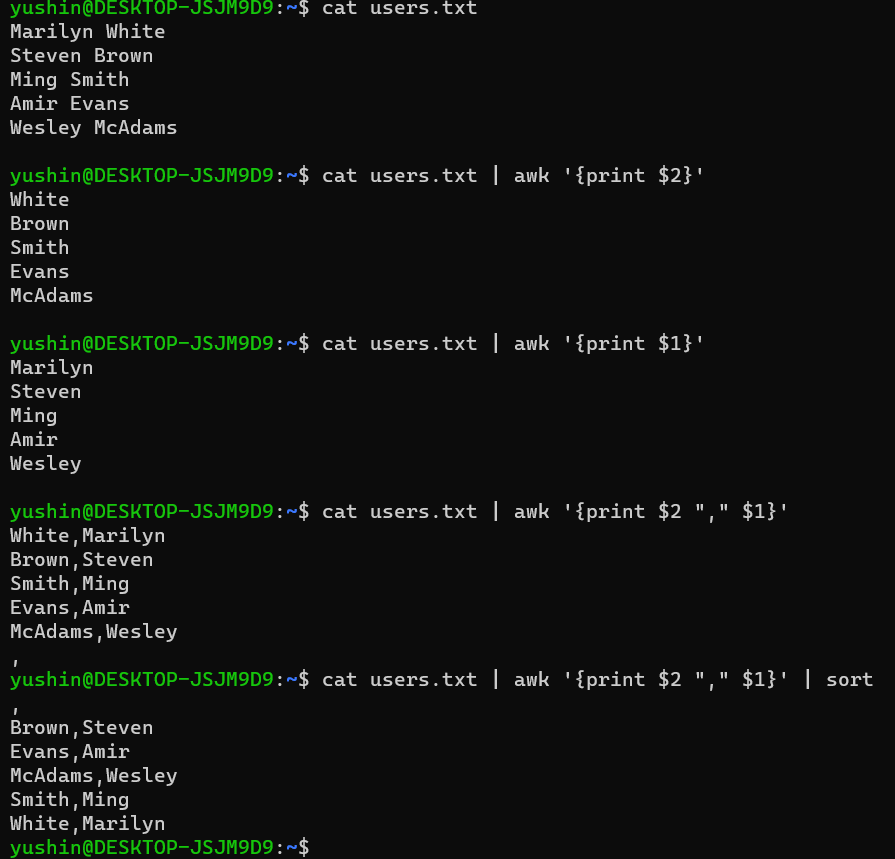
AWK
- helpful for reformatting text
- Powerful scripting language
Permissions
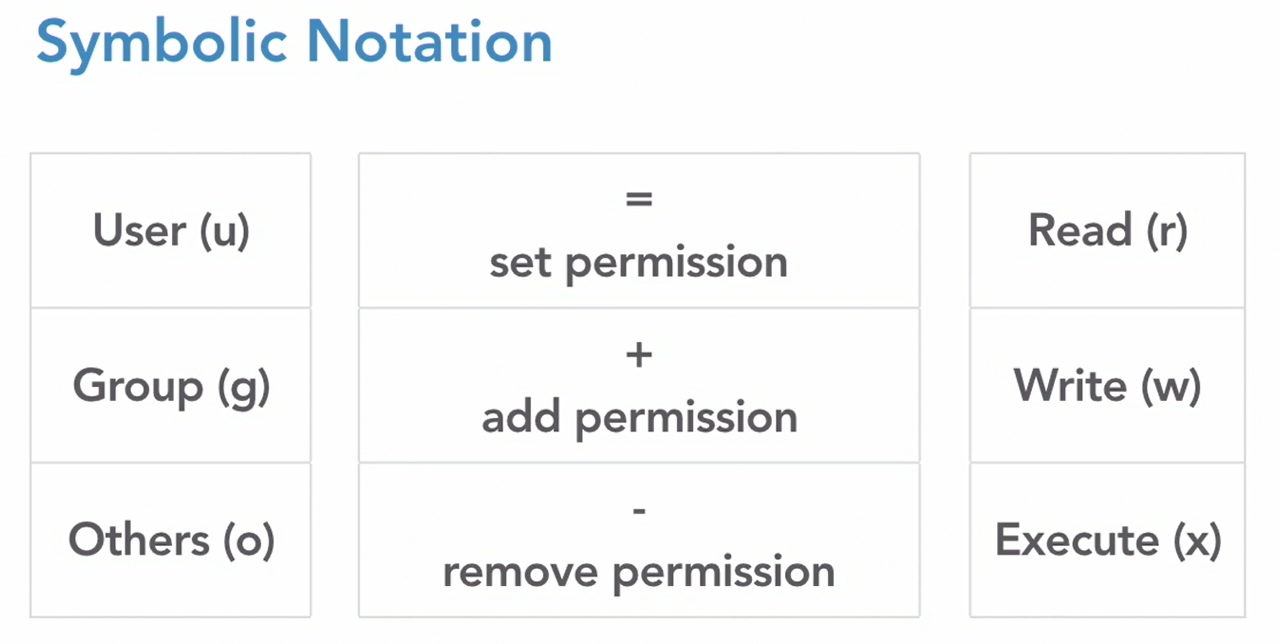
- Define which users and groups access a file.
- Describe the actions users and groups can take.
Permissions as a Matrix
| | User(u) | Group(g) | Others(o) | |:—:|:—:|:—:|:—:| | Read(r) | x | x | x | | Write(w) | x | x | | | Execute(x) | | | | | | rw- | rw- | r– |
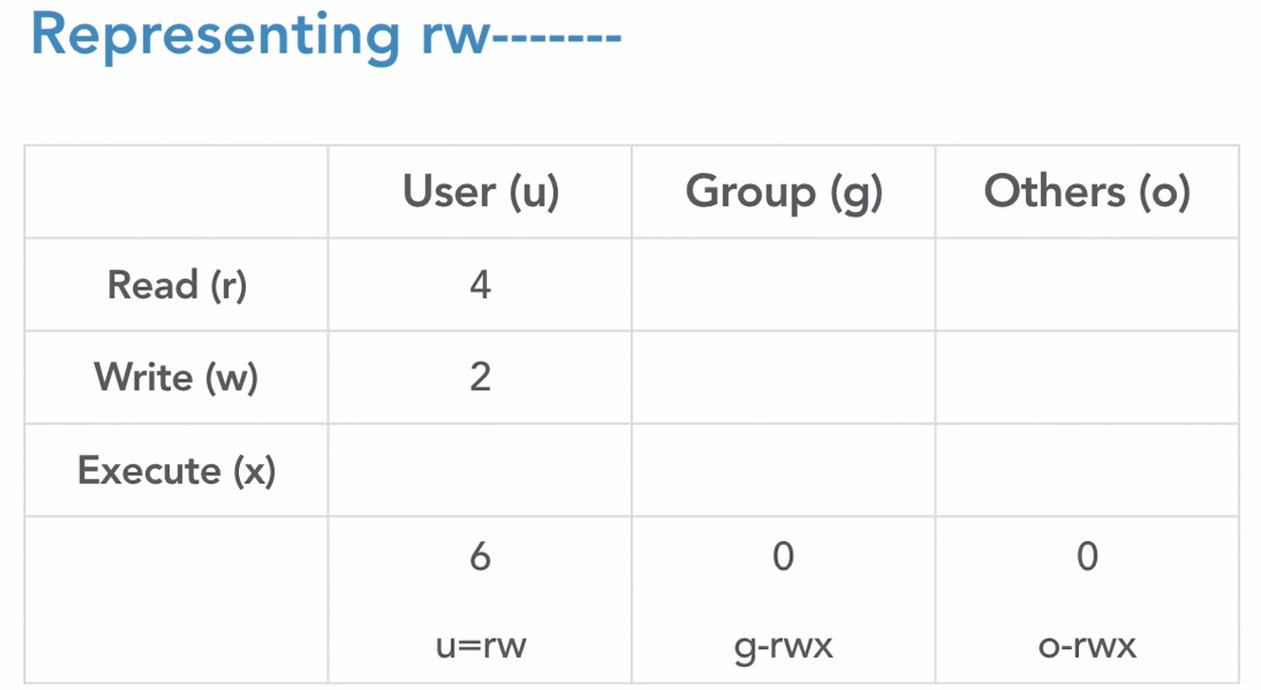
or we can assign the number for each action.
| User(u) | Group(g) | Others(o) | |
|---|---|---|---|
| Read(r) | 4 | 4 | 4 |
| Write(w) | 2 | 2 | 2 |
| Execute(x) | 1 | 1 | 1 |
| 7 | 7 | 7 |
664 = readable by everyone, writeable by user and group, not executable
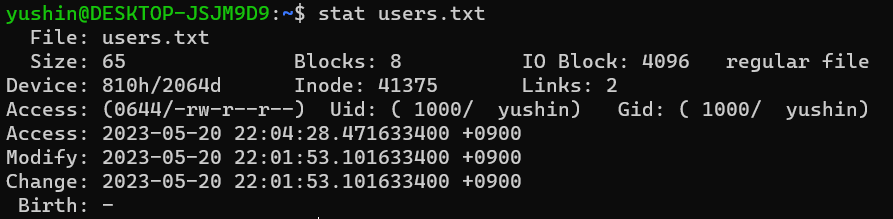
#check file information

stat users.txt
chmod 600 users.txt
The Root user
- Root is the system “supper user”
- The root account has no limitations.
- Root’s power can be borrowed with sudo
- It is used for system administraion tasks.
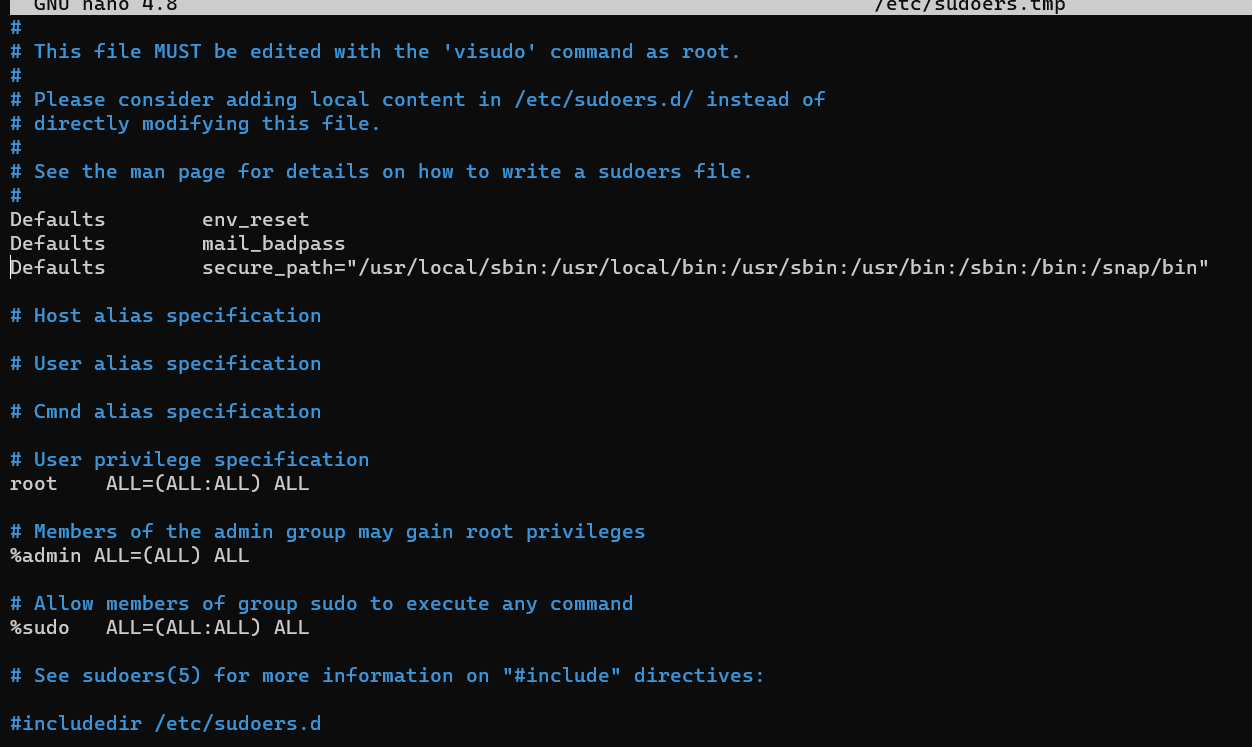
- sudoers are listed in /etc/sudoers
# borrow supper user by sudo command
sudo apt update
You can swich the user to user root, and using the command without any limitation.
sudo -s
# exit to your user
exit
you can add your user to the list of user that can use sudo or sudoer by the following command
sudo visudo
Install the software
- Advanced Packaging Tool (APT)
- Search for, install, and manage software
sudo apt upgrate

apt search colordiff

apt remove <app-name>
Remote access
- Remote terminal access s very common.
- SSH(Secure Shell) provides access.
- OpenSSH Server.
Transfer Files Securely
- SSH supports secure file tranfers SFTP and SCP
SFTP
- SSH File transfer protocol
- FileZilla and other software
- Works like FTP
- Only for file operation
sftp scott@10.35.3.156

# dowload file
get <file-name>

# upload
put <file-name>
SCP
- Secure Copy protocol
- scp source destination
- remote component - user@host:path-to-file
- Minor downside - need to know the exact path (no tab-completion)
scp scott@10.25.4.1:file2 .
Users and Groups
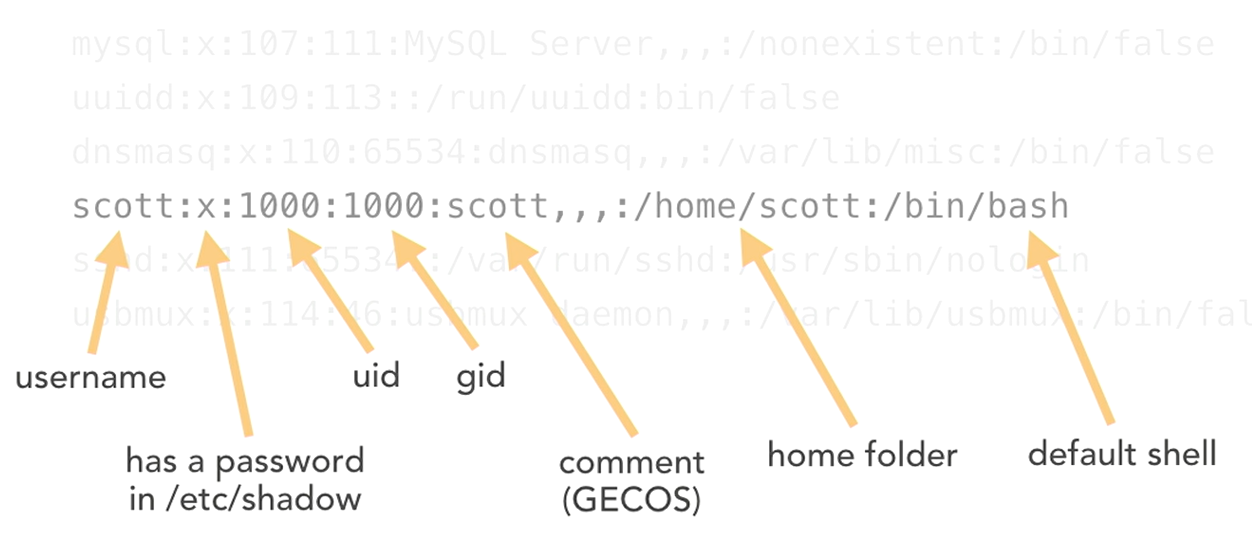
- We set human-readble names, but users and groups are tracked by numeric UIDs and GIDs
- When creating a regular user, it becomes a member of a group with the same name
- Users can be added to other groups
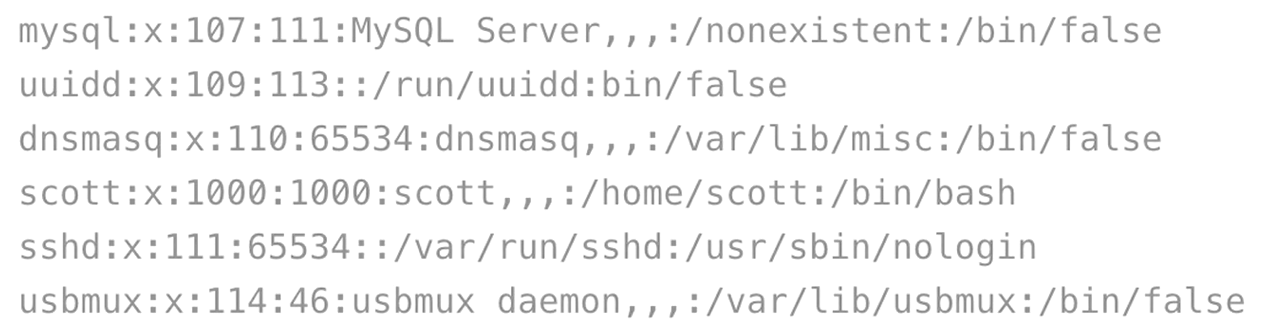
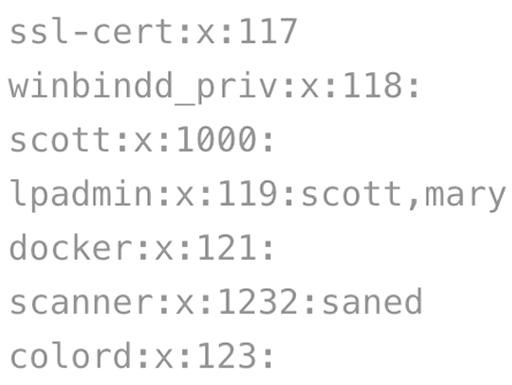
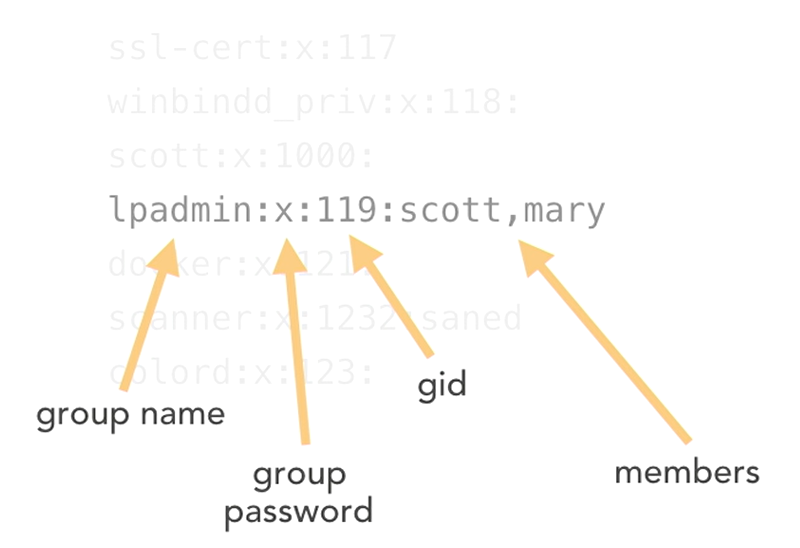
- Users list is
/etc/passwd - Group list is
/etc/group
```/etc/passwd
File content as bellow.
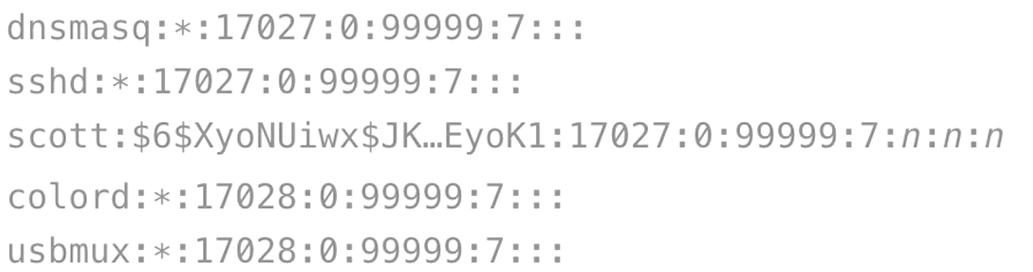
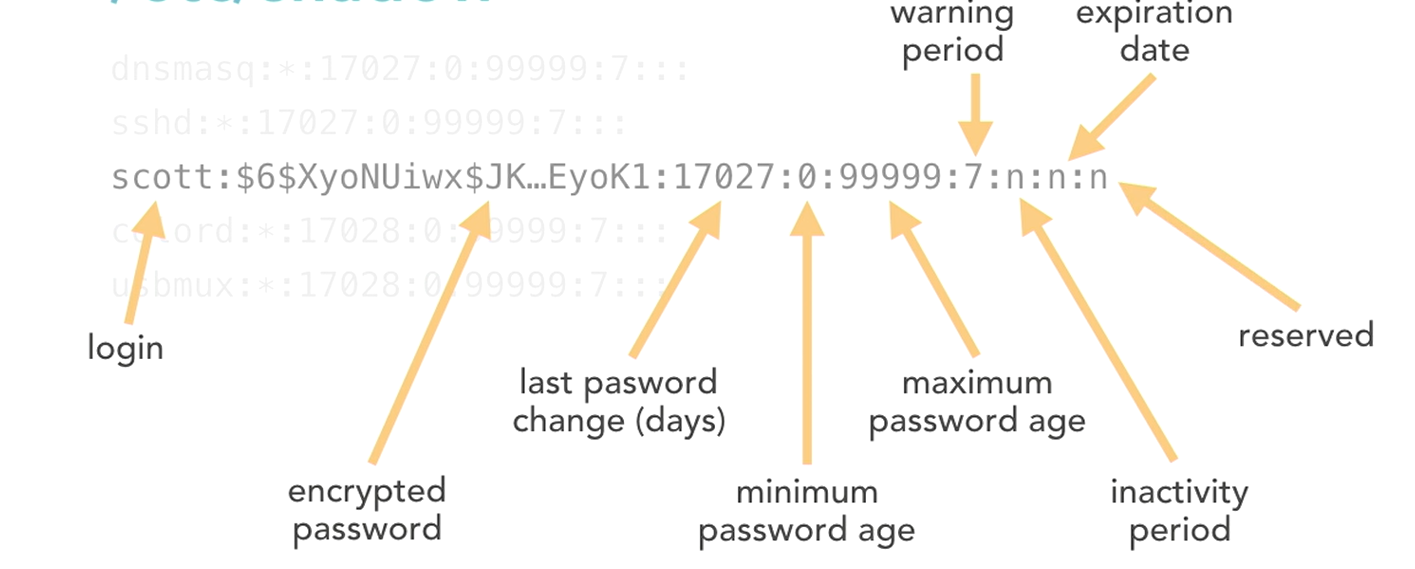
/etc/shadow
This file store encrypted password for the user.
```/etc/group
The Adduser command
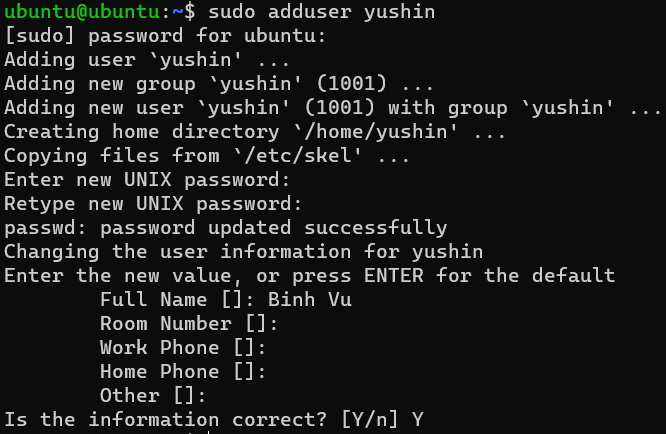
- Front end for ‘useradd’
- Allows us to specify additional information
- Reads from /etc/adduser.conf for defaults
sudo adduser yushin
To switch to new user, we can use su <new user name>
System User
sudo adduser --system botuser

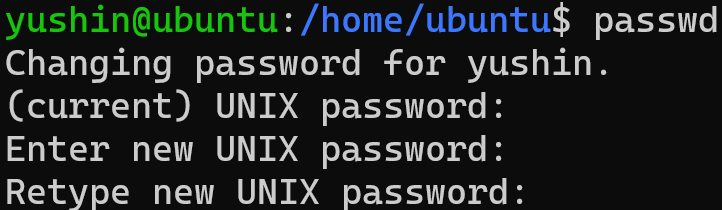
Changing the password
passwd

# Change password without input current password incase of you forgot your current pass

sudo passwd